Remove empty lines from java
1,Install notepad ++
2,Download TextFx plugin
3,Unzip & copy dll file to Program Files\Notepad++\plugins
4,Open Notepad++
5,In menu >TextFX > TextFX Edit > Delete Blank Lines
Remove spaces from eclipse.Remove empty lines from java,Remove empty lines from notepad
String Tokenizer |String Splitter | Java Tutorial
The string tokenizer class allows an application to break a string into tokens. The tokenization method is much simpler than the one used by the
String Tokenizer Tutorial video
StreamTokenizer class. The StringTokenizer methods do not distinguish among identifiers, numbers, and quoted strings, nor do they recognize and skip comments.String Tokenizer Tutorial video
Create GUI Java Swing using Eclipse
Right-click on the Eclipse project in the Package Explorer
• On the context menu select “New / Class”.
• Set ‘Source folder’ to Calculator/src
• Set the ‘Package’ to calculator.
• Set the ‘Name’ to View
• Set Modifiers to public
• Set Superclass to javax.swing.JFrame
• Click fnish
Now open GUI class and bottom tab switch to Design
Tags:Create GUI Java Swing using Eclipse,Create GUI using Eclipse,Create GUI using Eclipse Tutorial,Create GUI in eclipse ide,Create Java swing using Eclipse
Add spaces in a String using Java
If u would like to print String "123" as "1 2 3" then follow this code.
yourString.replace("", " ").trim();Above code just replacing all empty place with Space & remove starting space with trim method
Add leading zeros for binary conversion in java
If u convert Decimal 15 to binary,you will get Binary 1110 So you may want to add leading zero Ex:00001110
Step1:Find how many zeros do you need ?
if your input is16 then log2 16=4 zeros
if your input is 15 then log2 15=3 zeros not correct :-) So check 3 mod 2 !=0 and add one to it 3+1=4
int zeros=0;
zeros=(int) (Math.log(input)/ Math.log(2));
if (zeros%2!=0) zeros=zeros+1;
Step2:Add these zeros to your binary output
String formatted=String.format("%0"+zeros+"d\n", Integer.parseInt(Integer.toBinaryString(count)));
System.out.println(formatted);
Step1:Find how many zeros do you need ?
if your input is16 then log2 16=4 zeros
if your input is 15 then log2 15=3 zeros not correct :-) So check 3 mod 2 !=0 and add one to it 3+1=4
int zeros=0;
zeros=(int) (Math.log(input)/ Math.log(2));
if (zeros%2!=0) zeros=zeros+1;
Step2:Add these zeros to your binary output
String formatted=String.format("%0"+zeros+"d\n", Integer.parseInt(Integer.toBinaryString(count)));
System.out.println(formatted);
logarithm base 2 calculation in java
By default java provides base 10 using In build Math class
Base 10 log
Math.log(input) ;
Math.log(input) / Math.log(2);
Base 10 log
Math.log(input) ;
Base 2 log
Math.log(input) / Math.log(2);
This methods will return values in double so if you need integer
int zeros=(int) (Math.log(input)/ Math.log(2));
Assign user as Administrator in Windows
If you are managing computers you probably have to create one user account with administrator rights for all the computers.
1,Create a new user (Administrator,Admin)
2,To add this account to Administrator group follow this tutorial
Add a user to Administrator group
Above link explains how to add domain user accounts to Administrator group.
3,To add local user to Admin rights,Click Locations

4,Login as current Administrator Username/password
5,Change location to local computer from entire directory
6,Enter Username and click "Check Names" button
7,Click Ok ,Login as a new user.
1,Create a new user (Administrator,Admin)
2,To add this account to Administrator group follow this tutorial
Add a user to Administrator group
Above link explains how to add domain user accounts to Administrator group.
3,To add local user to Admin rights,Click Locations

4,Login as current Administrator Username/password
5,Change location to local computer from entire directory
6,Enter Username and click "Check Names" button
7,Click Ok ,Login as a new user.
PLC Converter -My Android application
I created new Android app for PLC Engineers to troubleshoot PLC Analog Input signal..
Download PLC Converter from Android Market

Download PLC Converter from Android Market

Android app upload error The icon for your application is not valid. Please use a 48x48 PNG
The icon for your application is not valid. Please use a 48x48 PNG this is most common error you will get while uploading to Android Market.
This is due to Icons resolution error in different folders.Use mspaint resize command and save it to drawable folder like below.
drawable-hdpi -72x72
drawable-mdpi-48x48
drawable-ldpi -36x36
This is due to Icons resolution error in different folders.Use mspaint resize command and save it to drawable folder like below.
drawable-hdpi -72x72
drawable-mdpi-48x48
drawable-ldpi -36x36
Send email from android application | Feedback Email for android app
1,Create button in xml layout
<Button
android:id="@+id/feedback"
android:layout_width="match_parent"
android:layout_height="wrap_content"
android:text="Feedback"
android:textSize="15dp" />
2,In Java Class
Button Myfeedbackbutton=(Button)findViewById (R.id.feedback); (get button id)
Myfeedbackbutton.setOnClickListener(new View.OnClickListener() (Click Listener)
{
public void onClick(View v) {
Intent feedback1= new Intent(android.content.Intent.ACTION_SEND);
feedback1.setType("text/plain");
feedback1.putExtra(android.content.Intent.EXTRA_EMAIL, new String[]{"Your Email"});
feedback1.putExtra(android.content.Intent.EXTRA_SUBJECT, "Email Title");
startActivity(feedback1);
}
});
<Button
android:id="@+id/feedback"
android:layout_width="match_parent"
android:layout_height="wrap_content"
android:text="Feedback"
android:textSize="15dp" />
2,In Java Class
Button Myfeedbackbutton=(Button)findViewById (R.id.feedback); (get button id)
Myfeedbackbutton.setOnClickListener(new View.OnClickListener() (Click Listener)
{
public void onClick(View v) {
Intent feedback1= new Intent(android.content.Intent.ACTION_SEND);
feedback1.setType("text/plain");
feedback1.putExtra(android.content.Intent.EXTRA_EMAIL, new String[]{"Your Email"});
feedback1.putExtra(android.content.Intent.EXTRA_SUBJECT, "Email Title");
startActivity(feedback1);
}
});
Using Buttons in Android apps development
This Tutorial shows how to use Buttons in Android apps development
1,Drag & Drop Button from Eclipse IDE
2,Select Properties and Assign name & Text Size
3,Right Click on button & select Edit ID ,Ex :Button3
4,Link this Button3 to Java by
//Start of Existing code
protected void onCreate(Bundle savedInstanceState) { //Executes when app launched
// TODO Auto-generated method stub
super.onCreate(savedInstanceState);
setContentView(R.layout.main); //Running Main.xml
//End of Existing code
//Start > Adding Button click event
Button Button3=(Button)findViewById (R.id.Button3);
Button3.setOnClickListener(new View.OnClickListener()
{
public void onClick(View v) {
// TODO Auto-generated method stub //Write your Code here
startActivity(new Intent ("com.mani.Convertor.TutorialOne")); //In my case I opened new Class
}
});
//End > Adding Button click event
Android app development SDK Installation Tutorial
Follow these steps
1,Download Java sdk JDK and Install it
2,Download Android SDK from here and Install it
http://developer.android.com/sdk/index.html
3,Download Eclipse IDE for Java Developers from here and Install it
http://www.eclipse.org/downloads/packages/eclipse-ide-java-developers/indigosr1
4,Shortcut eclipse file to your desktop and run as Administrator
5,Go to help >Install new Software >Add
In Add Repository box Enter Name &
Enter link as https://dl-ssl.google.com/android/eclipse/ and click ok
6,Select all and Import
7,In eclipse >windows>preference>Android> Copy the Android SDK location
8,Link Android Emulator by click on Android virtual device manager
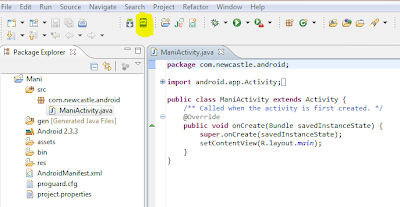
10,Link your project to emulator by using
Run>Run Configuration>Android Application >Click new select your project and emulator and click ok
1,Download Java sdk JDK
and Install it2,Download Android SDK from here and Install it
http://developer.android.com/sdk/index.html
3,Download Eclipse IDE for Java Developers from here and Install it
http://www.eclipse.org/downloads/packages/eclipse-ide-java-developers/indigosr1
4,Shortcut eclipse file to your desktop and run as Administrator
5,Go to help >Install new Software >Add
In Add Repository box Enter Name &
Enter link as https://dl-ssl.google.com/android/eclipse/ and click ok
6,Select all and Import
7,In eclipse >windows>preference>Android> Copy the Android SDK location
8,Link Android Emulator by click on Android virtual device manager

9,Add new Emulator by giving name and select Android version >Create AVD


10,Link your project to emulator by using
Run>Run Configuration>Android Application >Click new select your project and emulator and click ok
How to run batch file in Minimized
If u run batchfile for some purpose very often,It's quite a bit annoying to run in maximize mode
Follow these steps to run batch file in Minimized
1,Make short cut to batchfile
2,Right click on Shortcut and Properties
3,Under Shortcut tab Chenge Run to Normal window to minimized
4,In your program instead of calling ".bat" call ".lnk"
----------- .lnk is the shoortcut extension ------------------
Follow these steps to run batch file in Minimized
1,Make short cut to batchfile
2,Right click on Shortcut and Properties
3,Under Shortcut tab Chenge Run to Normal window to minimized
4,In your program instead of calling ".bat" call ".lnk"
----------- .lnk is the shoortcut extension ------------------
How to download restricted photos from Flickr
In Flickr, if you download protected photos It will save as spaceball image so use this trick to download.
1,Open the Flickr Picture in Mozilla Firefox or chrome
2,Click Tools and Select Page Info or Page source
3,Search for "Jpg"
4,Copy the link and paste into browser
5,Click SaveAS and SAVE the Image
1,Open the Flickr Picture in Mozilla Firefox or chrome
2,Click Tools and Select Page Info or Page source
3,Search for "Jpg"
4,Copy the link and paste into browser
5,Click SaveAS and SAVE the Image
How to Insert Html or XML code in blogger
Simple bits will convert HTML or XML code into post body code
1,Copy the code you want to convert
2,Paste into Enter Markup
3,Click Process
4,Copy the Modified code and paste into your content body
Using app.config file in C# Visual Studio
If would like to read some value from app.config file follow these steps.
1,Add System Configuration namespace to reference

Otherwise you will get 'ConfigurationManager' does not exist error
2,Import name space
3,Read String from config file
4,Sample App.config file
1,Add System Configuration namespace to reference

Otherwise you will get 'ConfigurationManager' does not exist error
2,Import name space
using System.Configuration
3,Read String from config file
ConfigurationManager.ConnectionStrings["SqlConnectionString"].ConnectionString;
4,Sample App.config file
<?xml version="1.0" encoding="utf-8" ?>
<configuration>

  <connectionStrings>
    <add name="SqlConnectionString"
connectionString="Data Source=localhost\SQLEXPRESS;Initial
Catalog=library;Integrated Security=True;" />

  </connectionStrings>
</configuration>
Using Timer in C#
1,Drag & drop timer from Visual Studio tool box
2,To start timer
5,To count down using Timer
2,To start timer
timer1.Start();
3,To Stop Timertimer1.Stop();
4,Timer Tick event (Executes every second if timer started) private void timer1_Tick(object sender, EventArgs e)
{
commands
}
5,To count down using Timer
private void timer1_Tick(object sender, EventArgs e)
{
label3.Text = (Convert.ToInt32(label3.Text) - 1).ToString();
}
Easy way to handle combo box in C#
1,Drag & drop Combo box in form in visual studio
2,Assign list like below picture

3,Assign default value in Combo box when form load
4,Double click on combo box will show SelectedIndexChanged event,Use Switch command to write your different event code.
2,Assign list like below picture

3,Assign default value in Combo box when form load
private void Form1_Load(object sender, EventArgs e)
        {

            comboBox1.SelectedIndex = 0;
        }
4,Double click on combo box will show SelectedIndexChanged event,Use Switch command to write your different event code.
private void comboBox1_SelectedIndexChanged(object sender, EventArgs e)
        {
            switch (comboBox1.SelectedIndex){

                case 0: shutdown = "-s"; break;
                case 1: shutdown = "-r"; break;
                case 2: shutdown = "-l"; break;


            }
Disable Auto Logon on windows
Pressing "Shift" key while windows loading will disable autologin script and enable visiblity of Windows login box
Enable Task Manager in Windows
Click Start -> Run Type in "regedit" and Enter.
Search for HKEY_CURRENT_USER -> Software \ Microsoft \ Windows \ CurrentVersion \ Policies \ System.
Look for: DisableTaskMgr. Click on REG_DWORD. Value: 1=Enable this key (disables TaskManager); Value: 0=Disable (enables TaskManager)
Search for HKEY_CURRENT_USER -> Software \ Microsoft \ Windows \ CurrentVersion \ Policies \ System.
Look for: DisableTaskMgr. Click on REG_DWORD. Value: 1=Enable this key (disables TaskManager); Value: 0=Disable (enables TaskManager)
Subscribe to:
Posts (Atom)